
SimplyCool


  #1 (permalink)  
Old 04-05-2009, 01:57 PM
Junior Member
 
Join Date: Apr 2009
Posts: 1
Default Mugen 2 on Asus P6T Deluxe Details

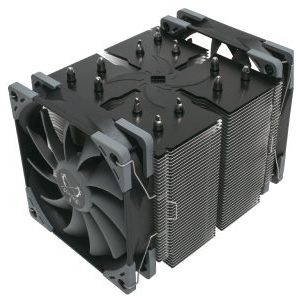
Well, I picked up my Mugen 2 locally the other day and decided to not sleep but instead install it. Hopefully what I learned can help others out, so I'm posting it. My setup is an Asus P6T Deluxe with a Core i7 920.

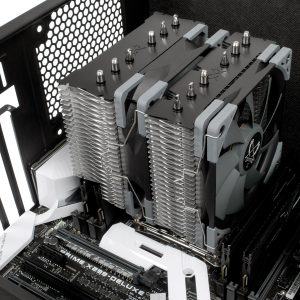
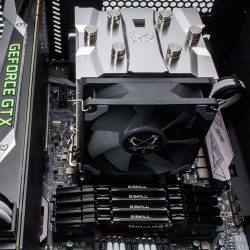
First if you plan on installing on a P6T and have the fan blowing through the heatsink toward the rear exhaust, chances are you're gonna lose your first DIMM slot. The fan sort of blocks it. I luckily, have a top exhaust on my case and managed to change the orientation of the cooler and fan and managed to keep my DIMM slots free. Secondly, the instructions were worthless, you kind of have to feel it through. I wrote a simple guide below to help the helpless.

Here are some pictures of my setup. As you can see I mounted the heatsink with the long side of it parallel to the long side of my case. The top fan and rear fan function as exhausts. I mounted the CPU fan blowing upwards into the exhaust, through the heatsink. The fan on the case door is an intake and I have another 2 120mm on the front also bringing in air. The results have been good. I used Antec Silver as my thermal compound. Anyways, here are some pictures of the case. I haven't tied up cables yet as I have 2 more hard drives and more ram on the way.

http://home.comcast.net/~tommyspanos/computer/a.jpg
http://home.comcast.net/~tommyspanos/computer/g.jpg
http://home.comcast.net/~tommyspanos/computer/h.jpg
http://home.comcast.net/~tommyspanos/computer/i.jpg
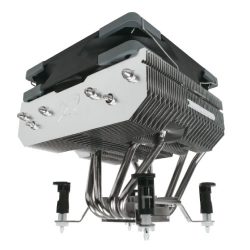
http://home.comcast.net/~tommyspanos/computer/f.jpg

At 3.8ghz (err.... 3.780), vcore at 1.32 and some prime95(full load), I peaked at 74C. I let it go for a while and it did not go over 74C. That is a bit hot for me so I'm going to tone it down to 3.4 with a lower vcore.

Picture:
http://home.comcast.net/~tommyspanos/computer/load.jpg

Help with install:

1) The Installation guide doesn't really help
2) I started out by removing my motherboard from my case. That's sort of a pain as I have a cramped case but there is no way around it. The setup requires it.
3) Obviously the old heatsink has to come off. If it's a stock Core i7 heatsink all you have to do is turn the knobs the direction the imprinted arrow is pointing and then wiggle it out.
4) I then flipped open the holder and removed my CPU. I proceeded to clean it using a napkin and rubbing alcohol. Alcohol evaporates quickly and removes the prior compound well.
5) Next, you have to remove the cradle that locks the CPU down. I used the specialized tool that came with the Mugen 2 packaging to remove the cradle. All you really need to do is use the tool to loosen the screws and then you can unscrew them with your fingers. Lift the cradle off when the screws are loose. The installation guide says the cradle will have washers underneath, the Asus P6T does not have these washers, do not worry. Also, remember the orientation of the cradle. You will need to reinstall it.
6) Now take the back plate that came with the motherboard off. It should just come right off.
7) In the packaging is a black metal backing with padding. It looks like a spider. It's numbered "2" on the installation guide item list. That is going to be the new back plate.
8) In the packaging there should be four aluminum washers (part number 8) and 4 plastic, clear ones (part number 9). In addition there are three sets of screws, the ones we need now are the medium sized ones (part number 11).
9) Take the screws I just mentioned and screw them onto the back of new backplate(part number 2). You should be screwing in from the metal side so the screws come out the side with padding.
10) Now there should be four screws on the backplate. This backplate mounts into the motherboard. Before we can do that though we have to apply washers to the screws. Take the four aluminum washers (part number 8) and place one over each screw on the padded side. Then take the four plastic washers (part number 9) and place one over each aluminum washer on each screw. It is crucial you use these washers or you can destroy your hardware.
11) Now that you have your new backplate (part number 2) prepared you need to mount it on the motherboard. The way it holds is just like the original backplate. The cpu cradle screws, screw onto the screws protruding from the backplate. Some tricky handwork is required. What I did was l carefully laid the backplate flat(part number 2) with the screw facing upwards. I then picked up my motherboard, aligned the holes and slid the screws through.
12) Now you should have a backplate(part number 2) and motherboard resting, you need to reinstall the CPU cradle that you removed earlier. This is very easy. Simply place the cradle over the screws that are protruding and tighten each one by hand. Start with the upper right screw, then the lower left, then upper left and then lower right. Then in the same order use the tool to gently tighten them. Do not over tighten.
13) Reinstall your cpu into the cradle. It only goes in one way.
14) Now, find the brackets that came in the packaging. They are "part number 3" on the install guide. These are simple to install. Each one requires two screws. Get the heatsink. Simply line it up with the bottom of the heatsink and the bracket and screw each side in. The screws it uses are the smallest ones that came with the packaging (part number 6) The brackets should be angled downwards. If that doesn't make sense, think about putting your finger tips against a flat surface. That's the angle you want.
15) Now it's time to apply the thermal compound. The one that came with the heatsink isn't the best. If you want to get the most out of your heatsink use a silver based compound like Arctic Silver. Apply a thin layer to the top the cpu. If you're using silver, make sure you don't get any compound on anything but the cpu surface. It can damage components. I like the put a very small glob in the middle of the cpu after I've spread the compound to make sure I don't have a thin spot in a crucial area and to give the some room for play when I move the heatsink around during mounting.
16) This is probably the most difficult part. It's easier if you have two people but it can be down alone. At this point you have 4 screws left. Those screws lock the heatsink into place. The four screws go through the backplate and screw into the brackets that we put on the heatsink earlier. Pretty neat, right?
17) Now it's tricky if you're alone. You need to somehow have the motherboard vertical and supported. You need one hand to hold the heatsink in place while the other screws the screws in from the other side. I sat down on the ground and held the motherboard vertically between my legs. I carefully lined up the the outer holes of the bracket with the empty spaces in the motherboard. I then pushed the heatsink down against the cpu and proceeded to screw each screw in diagnol fashion from the other side. After the heatsink was secure enough to not need to be held, I tightened each screw on the other side to a firm but not overly strong point.
18) Now you simply need to put on the fan. There are 2 clips. The ends of the clip slide into the screw holes of the fan and then the length of the clip goes through the slits on each of the corners of the heatsink. You ideally want the fan to be blowing into the heatsink and mounted on the wide side of the heatsink. The fan has an arrow indicating which way the air flows through it. You want the air flowing through the heatsink.
19) Now plug in your fan and enjoy.

I hope this helps!

Last edited by hiroshige; 04-08-2009 at 08:15 AM. Reason: Image too large.
Reply With Quote
  #2 (permalink)  
Old 04-06-2009, 08:20 AM
hiroshige's Avatar
Marketing/Service Coordinator
 
Join Date: May 2008
Location: Hamburg
Posts: 987
Default

Hello TommyS,

thank you very much for your detailed description! We really appreciate users who share their knowledge!

Kind regards,
Stefan - Scythe EU Hamburg
__________________


Reply With Quote
  #3 (permalink)  
Old 04-08-2009, 01:21 AM
Junior Member
 
Join Date: Apr 2009
Posts: 6
Default

For some reason my mugen 2 pack was missing 3 of the insulation washers, I bet this has never ever happened to anyone else but these things always happen to me. I have another type of insulation washer though but its more of a card type material instead of plastic will that work the same? I installed it on a brand new XFX x58i mobo and it was completely dead so I RMA'd it thinkin I had just got a DOA board but now I think it may have been this cooler that did it.
So you can imagine Im less than keen to put it onto my new p6t deluxe as this board retails in my country for $700 plus.
Reply With Quote
  #4 (permalink)  
Old 05-28-2009, 11:41 PM
Junior Member
 
Join Date: May 2009
Posts: 4
Default

Thanks for your great instructions TommyS, they were extremely helpful!

Further to the issue with the Mugen 2 fan covering two ram slots I have just installed it on a P6T Deluxe v2 & it suffers from this as well.

I've got around this problem by mounting the fan in a Pull position. This is done by pointing the fan in the same direction as the installation manual recommends except it is mounted on the opposite long side of the heatsink. This causes the airflow to be pulled from the heatsink, rather than pushed through it.

This mounting position points the Mugen 2 fan directly at the rear case fan on my Antec Sonata Elite case & the two fans work together, blowing the air directly out back
Reply With Quote
  #5 (permalink)  
Old 06-12-2009, 09:28 AM
Junior Member
 
Join Date: Jun 2009
Posts: 9
Default

I have got a Mugen 2 and a Asus P6t Deluxe V2, but my temps seem to high, especially on idle. I have got my Core i7 @ 19 x 200 @ 1.216 with HT on and idle temps are 49.50.48.47 degrees Celsius.

Even when I lower the vCore and lower the frequency (default) my temps stay the same. I cannot understand what I am doing wrong, I have mounted the heatsink three times now with AS5, using different amounts of AS5 (mounted like 69 heatstinks with AS5 and know that I am not using to much paste)

Stressing out with Prime95 (small FTTS) gets 80 - 80 - 78 -75 degrees.. Linx does +7 degrees on all cores..

I have just finished installing a similair setup as mine for a friend of mine.. he is getting idle temps 35 - 40 degrees celsius, with (another core I7 batch) but using the same vcore / frequency.

I have got 2x 120MM fans.. One intake and one outtake, + 120MM Scythe cooler. What also doesnt improve my idle core temp. is leaving my case open. What I didnt do was remount my 'Spider".
I have 'aligned' my Mugen 2 heatsink in the direction of my case.. see underneath:
___
| |
| |
|__ |

Any suggestions or thoughts about my setup? Because everybody seem to have lower (idle) and stress temperatures.. it seems unlikely that my heatsink isnt 100%..
Reply With Quote
  #6 (permalink)  
Old 07-19-2009, 12:27 PM
Junior Member
 
Join Date: Jul 2009
Location: Japan
Posts: 1
Default First-timer's experience

My first-timer's experience:
I just installed my Mugen 2 today on a new build, using an Asus P5Q mobo with the LGA775 socket (Intel Q8400). Like you, I discovered that mounting the Mugen horizontally might block one of the DIMM slots, so I mounted it vertically instead, with the fan on the bottom blowing up.

The P5Q is a bit different from the P6T in that it doesn't have a removable CPU cover, so it's just a matter of mounting the heat sink directly onto the surface of the CPU. At least, I'm hoping I did that part right . I was a bit worried at first since it's hard to see from the side whether the mugen's heatsink base is actually contacting the CPU, but the CPU surface does rise proud a bit above the retainer, and after a long time looking at various angles I figured it was coming in contact (in retrospect, an easier and surer method would've been to apply a dot of thermal grease to the surface and put the two together to see if it the thermal grease was actually spread around by contact; I should've done that ).

Quote:
Originally Posted by TommyS View Post
16) This is probably the most difficult part.
Boy, that's an understatment. I couldn't figure out how to do it any other way, so I placed the Mugen 2 upside down on the table and used a red felt pen to mark the proper mounting holes in the assembly clips. I then applied thermal grease to the CPU, flipped the mobo over and lowered it onto the Mugen 2, eyeballing the red-marked mounting holes through the holes in the motherboard. I used a cardboard box of the right height to support the far end of the mobo as I put on the "spider" bracket and screwed it down. Worked like a charm. Outside of confirming that the fans work, I haven't done any testing yet since I've still got to buy a monitor and one or two more hdd (and load Windows 7, etc.).

Reply With Quote
  #7 (permalink)  
Old 08-06-2009, 10:33 PM
Junior Member
 
Join Date: Aug 2009
Posts: 2
Default

Great guide! Some mod should sticky this. Much easier to understand then the instruction sheet and I did what Hokuto did to install the heatsink. Hopefully nothing went wrong and hoping for great temp readings. XD
Reply With Quote
  #8 (permalink)  
Old 09-14-2009, 07:20 PM
Junior Member
 
Join Date: Sep 2009
Posts: 1
Default

Hi
I bought also asus p6t deluxe (V2) and mugen 2. I haven't got the stuff just yet but I have a question.
How easy is it to rotate the cooler so that the wide side is to the top and the fan is also blowing up? And how much will it shortens the fans lifespan, when it's blowing up (or is it best to buy ball bearing type fan?)?
Reply With Quote
  #9 (permalink)  
Old 11-23-2009, 07:32 AM
Junior Member
 
Join Date: Nov 2009
Posts: 1
Default Great write up

Thanks for the great writeup, definitely clarified a few things for me. My only question is, did the thermal compound slide around at all or spill when you were doing it this way? I'm thinking of trying to do it upside down -- place the Scythe with its top on the table and then rest the motherboard on top of it with a box of similar height to balance it on the other side. What do you think?

edit: It appears "Hokuto" did that. How did everything turn out Hokuto?

Last edited by Bl1tz; 11-23-2009 at 07:43 AM.
Reply With Quote
Reply

Thread Tools
Display Modes

Posting Rules
You may not post new threads
You may not post replies
You may not post attachments
You may not edit your posts

BB code is On
Smilies are On
[IMG] code is On
HTML code is Off
Trackbacks are On
Pingbacks are On
Refbacks are On


Powered by vBulletin® Version 3.8.7
Copyright ©2000 - 2012, vBulletin Solutions, Inc.
Content Relevant URLs by vBSEO 3.6.0
Template-Modifications by TMS
Copyrights by Scythe EU GmbH - All rights reserved - 2007

1 2 3 4 5 6 7 8 9 10 11 12 13 14 15 16 17 18 19 20 21 22 23 24 25 26 27 28 29 30 31 32 33 34 35 36 37 38 39 40 41 42 43 44 45 46 47 48 49 50 51 52